Sheet G-4 GTA 6 Confirmed
PS5 Setup for GTA 6: From the Box to Launch Night
By the Wanted State editors Checked 12 min read
Key facts
- The two clear plastic pieces in a slim PS5 box are the horizontal stand feet.
- Sony says GTA VI needs PS5 system software 26.07-14.23.00 before it will run.
- Standing a slim PS5 upright takes Sony's vertical stand, sold separately.
- GTA VI needs up to 212 GB free; pre-load opened on November 10, 2026.
- Auto-Download and Stay Connected to the Internet let the pre-load finish in rest mode.
- GTA VI targets 30 fps on PS5 and PS5 Pro; no 60 fps mode is announced.
On this page
- 01What is in the PS5 box
- 02Where the PS5 horizontal stand feet go
- 03Can a slim PS5 stand upright without a stand?
- 04What plugs into the back
- 05First start: update, then sign in
- 06Get GTA 6 downloading before November 19
- 07Picture settings to check for GTA 6
- 08Set up clip saving before you need it
- 09Why Bluetooth headphones show up but will not connect
- 10Logitech MX keyboard and mouse: error CE-109524-1
- 11What's confirmed and what isn't
A new PS5 needs four things before Grand Theft Auto VI: a steady place to sit, two cables, a system software update and a finished download of up to 212 GB. We unboxed a slim PS5 with a disc drive on November 14, 2026, five days before launch, and the first thing we had to look up was not a setting. It was two clear plastic pieces with no label on them. The photos on this page are ours. The steps and menu paths come from Sony’s support pages, linked where we use them.
What is in the PS5 box
Besides the console, our box held a DualSense controller, an HDMI cable, a power cable, a USB cable and two clear plastic pieces. There is no stand for standing the console upright.
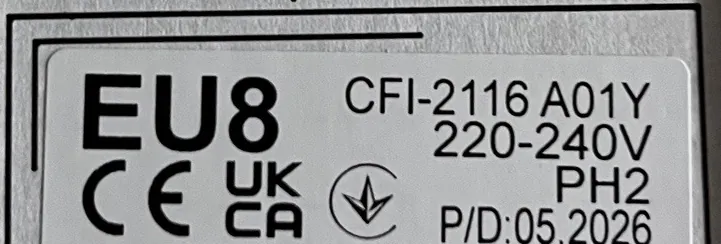
The label on our box reads CFI-2116, with a production date of May 2026. Sony groups the slim consoles by model number, and its Vertical Stand page lists the CFI-2100 model group, which ours belongs to, next to the earlier CFI-2000 group. The number matters when you look up instructions: find yours on the box label or on the console before you follow a guide.
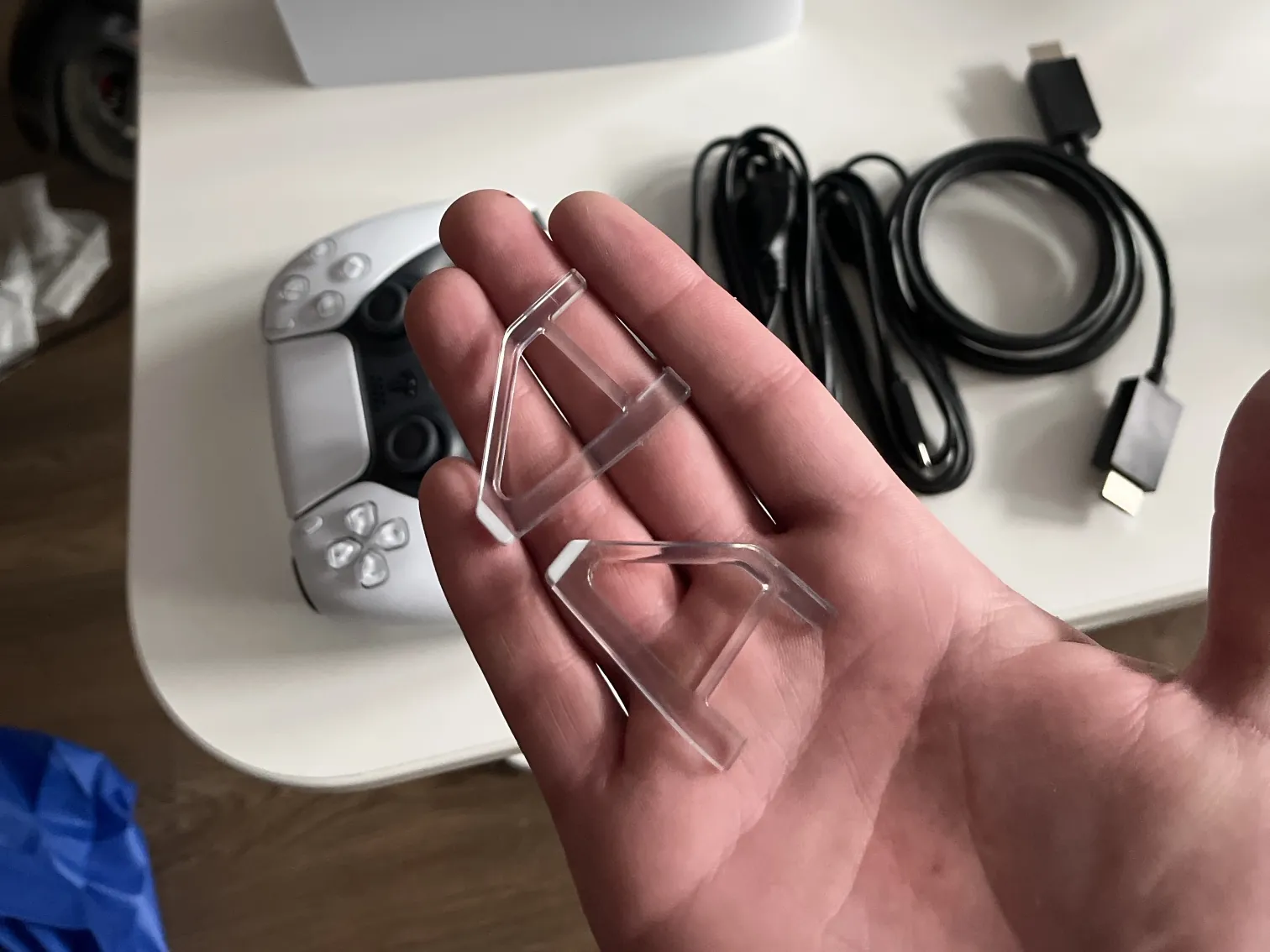
The clear pieces are the horizontal stand feet. They exist for one job: holding the console level when it lies on its side. If you plan to stand the console upright, they stay in the box.
Where the PS5 horizontal stand feet go
Not on the back. That was our first guess, and the back has only ports and vents. The feet go into the dark groove that runs between the two white cover plates, on the side of the console that will face down. On a console with a disc drive, that is the drive side.
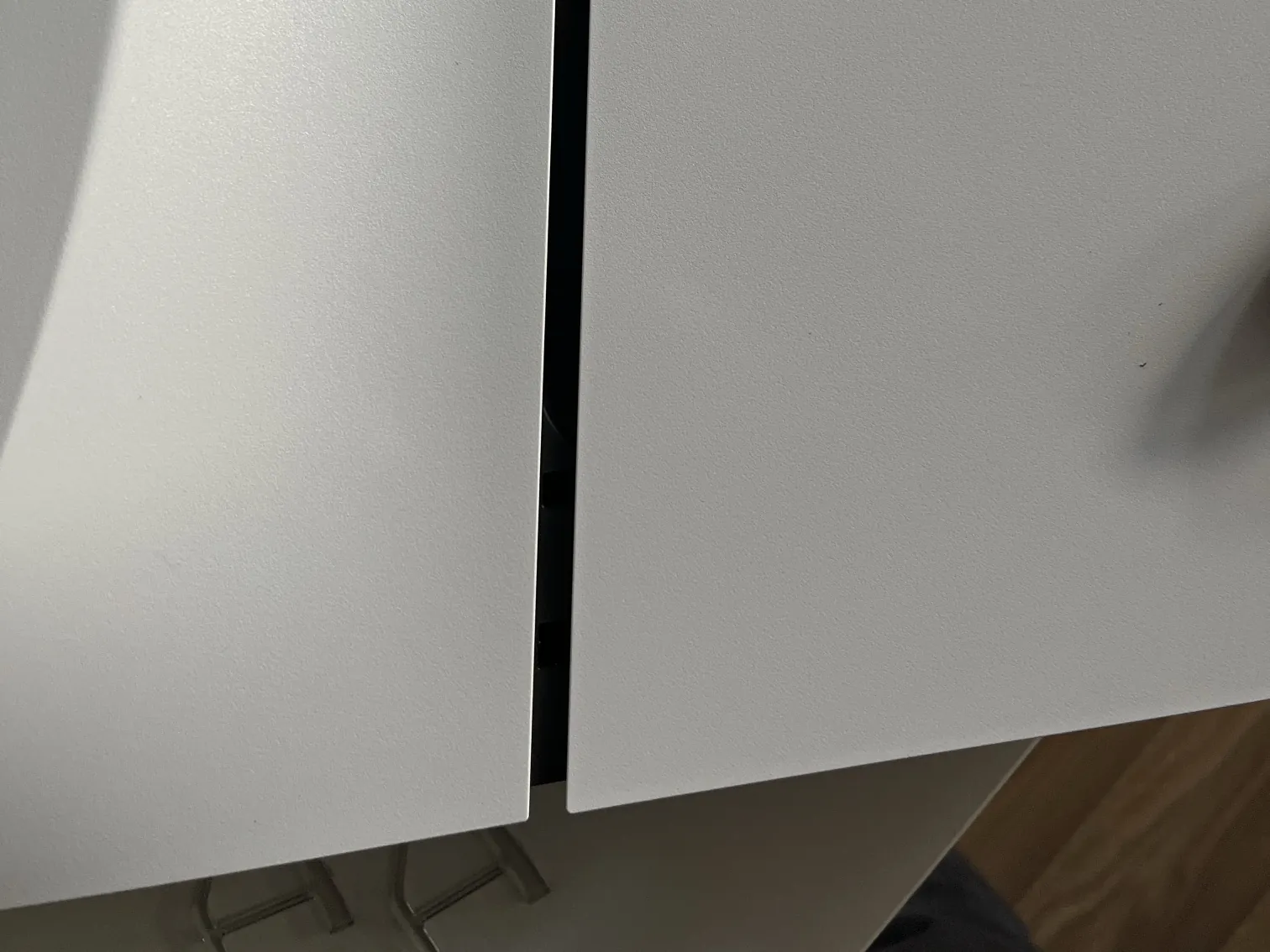
Sony’s getting started guide gives two steps for the slim model:
- Put the console on a soft cloth on a flat surface.
- Push the feet into the holes in the grooves of the console.
Sony also says to always attach the feet before a console lying on its side is used. The holes are inside the groove, and the feet push in by hand. One foot goes near the front of the console and one near the back.
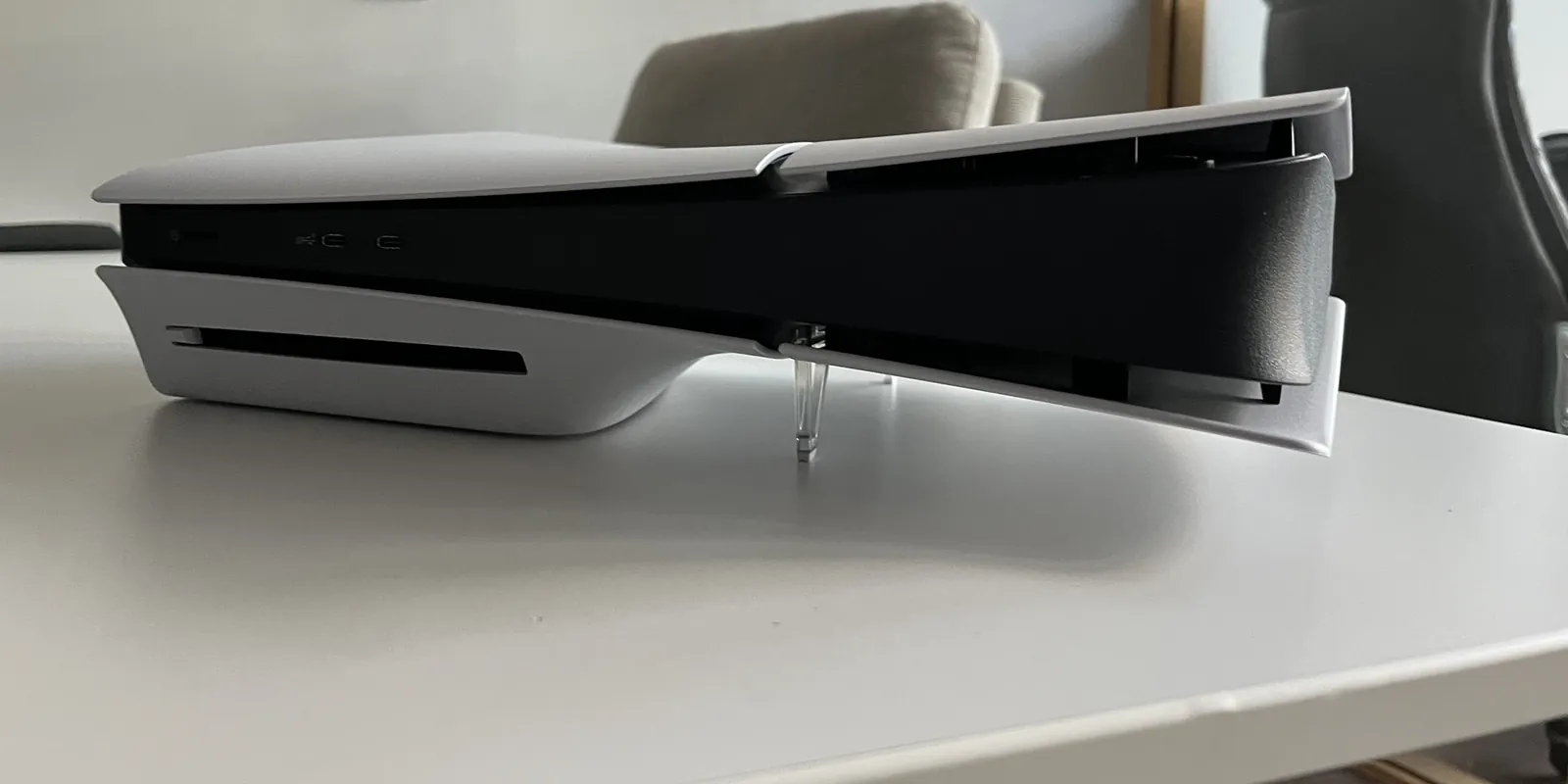
This is how ours ended up. Seen from the front, the disc slot is at the bottom left. The console rests on the disc drive cover and on the two feet, and the other end stays clear of the table.
You cannot really put them in wrong. One end of each foot is narrower than the other, and on our console a foot only went into the groove one way. Sony’s pictures label the feet “long” on a console with the disc drive installed and “short” on a console without it: the disc drive makes one cover bulge outward, and the feet have to make up that height. We could only try the version with the drive. Once the feet are in, press a corner. The console should not rock.
Can a slim PS5 stand upright without a stand?
Sony’s answer is no. The same guide says the vertical position needs the vertical stand, which is sold separately.
Ours stood on a table by itself long enough to photograph the back. We would not leave it like that. The console is tall and narrow, and the box includes nothing that holds it upright.
The stand screws onto the bottom end of the console. Sony’s UK store lists it at £24.99 and says it fits PS5 Pro, the original CFI-1000 model group and the slim CFI-2000 and CFI-2100 model groups. Its box holds the stand, a mounting screw, a console stand attachment and a manual. Sony’s vertical stand instructions have you turn the console off, place it rear side up, remove the screw cap and tighten the mounting screw by hand. Sony says a coin can be used.
What plugs into the back
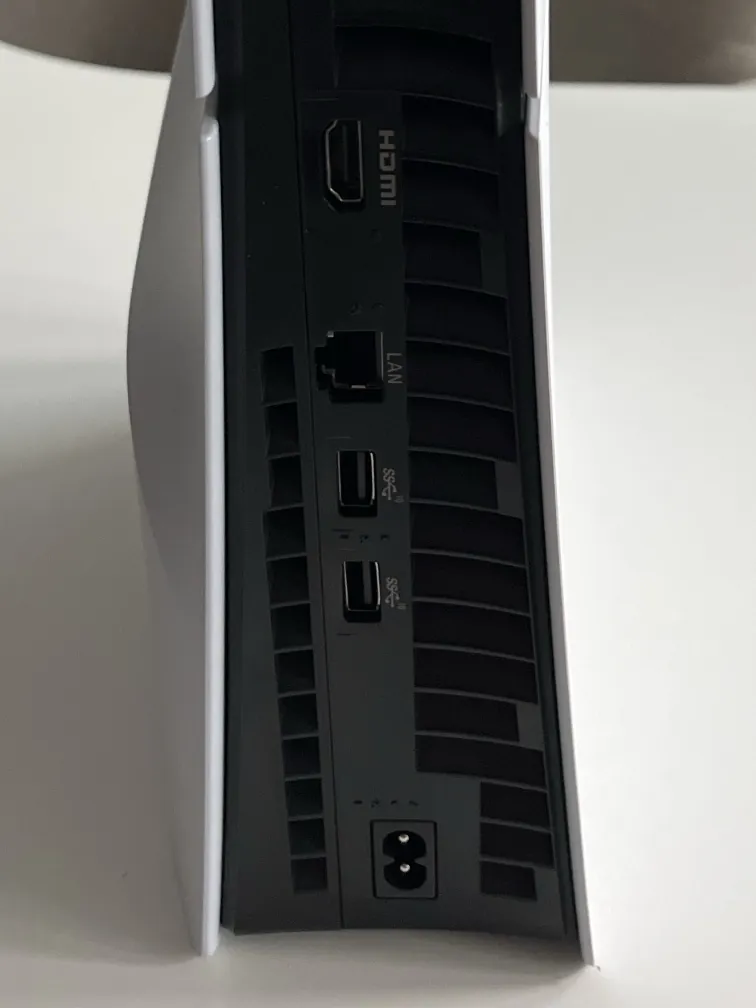
The back of the slim console has five sockets, top to bottom when it stands upright: HDMI, LAN, two USB ports and power. Sony’s connection steps use only two of them:
- Plug the included HDMI cable into the HDMI OUT port on the console and into an HDMI input on your TV.
- Plug the included power cable into the AC IN connector, then into the wall.
The LAN port is optional, and for this game we would use it. A download of up to 212 GB is the kind that shows every weakness in a Wi-Fi signal. If your router is within reach of a network cable, plug it in, go to Settings > Network > Settings > Set Up Internet Connection and pick the wired connection. Wi-Fi is set up on the same screen.
Look at how much of the back is vent. Leave open space behind and around the console, and keep it out of closed cabinets. That part is our advice, not a number from Sony.
First start: update, then sign in
When the console turns on for the first time, Sony says the screen walks you through connecting the controller, choosing a language, setting up the internet connection, adjusting display settings, choosing power options for rest mode and accepting the user agreement. The controller connects through the USB cable from the box.
One thing nobody warns you about is the voice. On ours the console read every menu item aloud through the whole setup, including each letter typed on the on-screen keyboard. That is the Screen Reader, an accessibility feature for players who are blind or have low vision. The setup does offer to turn it off, but it is on by default, and we pressed Continue without looking. Do not do that. If you already have, switch it off from the home screen under Settings > Accessibility > Screen Reader.
Then comes the system software update. If the console needs one, a notification to update appears. You can also check by hand under Settings > System > System Software > System Software Update and Settings. Do this before anything else, because the sign-in prompt only comes once the software is current.
For GTA VI this step is not optional. On November 18, 2026, PlayStation Support said Sony had issued a system software update that is required before playing the game, and asked players to download it before midnight on November 19. Push Square quotes the post. Sony’s system software page lists the current version as 26.07-14.23.00, with a single note: security fixes. If you updated earlier in November, check again. The firmware is a separate download from the game’s own update, which arrives by itself when Auto-Download is on.
Sign in with the PlayStation account you will play on, or create one. That choice matters for GTA VI: a boxed copy is a download code, and the code stays with the account that redeems it. Our guide to GTA 6 physical copies and codes explains the region lock on PlayStation codes.
Get GTA 6 downloading before November 19
Rockstar says the pre-load needs up to 212 GB of available space, depending on your device, and it has been open on PS5 since midnight local time on November 10, 2026. A console set up today can have the whole game waiting on launch night. Four steps:
- Check the space. Settings > Storage shows what is free. We suggest about 250 GB, to leave room for a patch if Rockstar ships one. None has been announced.
- Get the game onto the account. Pre-order it on PlayStation Store, or redeem the 12-digit code from a boxed copy there.
- Turn on automatic downloads. Go to Settings > Saved Data and Game/App Settings > Automatic Updates and turn on Auto-Download, as Sony’s auto-download page describes.
- Keep the console online while it rests. Go to Settings > System > Power Saving > Features Available in Rest Mode and turn on Stay Connected to the Internet. Then put the console in rest mode, not fully off.
This is the purchase screen on ours. The Store listed the game at 223.2 GB, the download counter ran to 209.796 GB, and a countdown showed the time left until the game opens. At the start the console estimated 61 minutes for the download. Yours depends on your connection.

If nothing starts, find the game in your library and select Download. Sizes for each console, the Xbox numbers and what to do when the drive is full are in our GTA 6 pre-load and download size guide.
Picture settings to check for GTA 6
The video settings are under Settings > Screen and Video > Video Output. Sony’s resolution guide describes what each one does. For a 4K TV the list is short:
| Setting | What Sony says it does | What we would pick |
|---|---|---|
| Resolution | Automatic uses the highest resolution your TV supports | Automatic |
| HDR | Always On, or On When Supported | On When Supported |
| Adjust HDR | Fine brightness adjustments and optimized HDR rendering | Run it once for your TV |
| VRR | Lets the refresh rate adjust in real time on TVs and in games that support it; results vary by TV | Automatic |
| Apply to Unsupported Games | Tries to stabilize the frame rate in games without VRR support; Sony says to turn it off if a game behaves oddly | Off until we have tested it with GTA VI |
| ALLM | A TV that supports ALLM switches itself to low-latency mode while you play | Automatic |
| 120 Hz Output | Turns on 120 Hz output for TVs and games that support it; Sony advises an HDMI 2.1 port on the TV for 4K at 120 Hz | Leave as it is |
Short videos going round before launch tell you to check three of these: resolution, VRR and ALLM. It is the right menu, and two of the three need no work. Automatic resolution already is the highest your TV supports, so there is nothing higher to pick. ALLM only does something on a TV that supports it, and Sony notes that the TV drops into low-latency mode whenever VRR is in use, even with ALLM set to Off. The one to be careful with is Apply to Unsupported Games. Rockstar has not said whether GTA VI supports VRR, so nobody knows yet what that switch does to this game. We try it both ways on November 19 and write the result here.
Do not expect the 120 Hz setting to change how GTA VI runs. Rockstar has confirmed a 30 fps target on PS5 and PS5 Pro and has not announced a 60 fps or 40 fps mode. What PS5 Pro adds is in our PS5, PS5 Pro and Xbox comparison.
Set up clip saving before you need it
The first hours in a new GTA produce moments you want to keep, and the PS5 records in the background. Pressing the Create button on the controller opens the create menu. Its Save Recent Gameplay option can keep anything from the last 15 seconds to the last hour of play, according to Sony.
The settings are under Settings > Captures and Broadcasts > Captures. Shortcuts for Create Button changes what the button does (Standard, Easy Screenshots or Easy Video Clips), and Video Clip Format sets the file type and resolution. Video takes storage too, so count it against the space you are saving for the game.
Before you post a clip, read what Rockstar’s video policy allows: footage from before launch day, endings and isolated cutscenes are taken down.
Why Bluetooth headphones show up but will not connect
We tried it with a pair of JBL Bluetooth headphones. The PS5 found them at once in its Bluetooth Accessories list, along with every other Bluetooth gadget in the room, and then would not connect them.
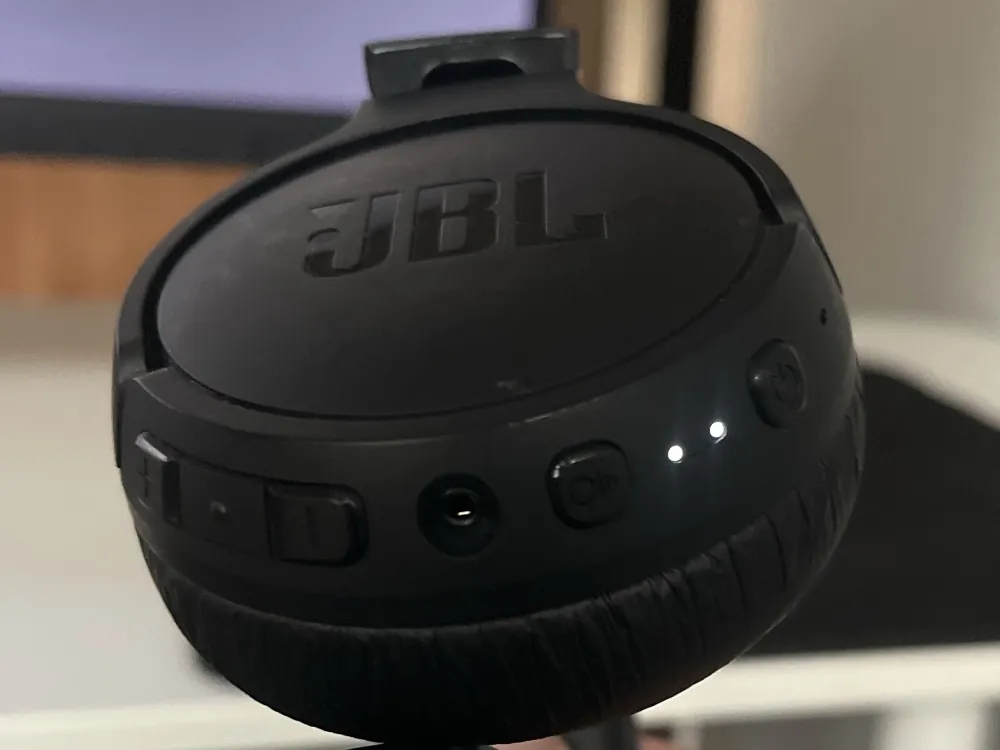
That is how the console behaves. It uses Bluetooth for controllers and similar accessories and does not send game audio to ordinary Bluetooth headphones, as What Hi-Fi? explains. There are three ways around it:
- A cable. If the headphones have an audio socket, run a cable from it to the 3.5 mm socket on the DualSense controller. No pairing and no delay.
- A USB Bluetooth audio transmitter. It plugs into a USB port on the console, which treats it as a USB sound device, and the headphones pair with the transmitter. Some delay is possible.
- A headset made for the console. These come with their own USB dongle.
Logitech MX keyboard and mouse: error CE-109524-1
The same list found our Logitech MX Keys S keyboard and MX Master 4 mouse, this time with a keyboard and a mouse icon next to the names. Choosing them did not connect them. The console answered with error CE-109524-1.
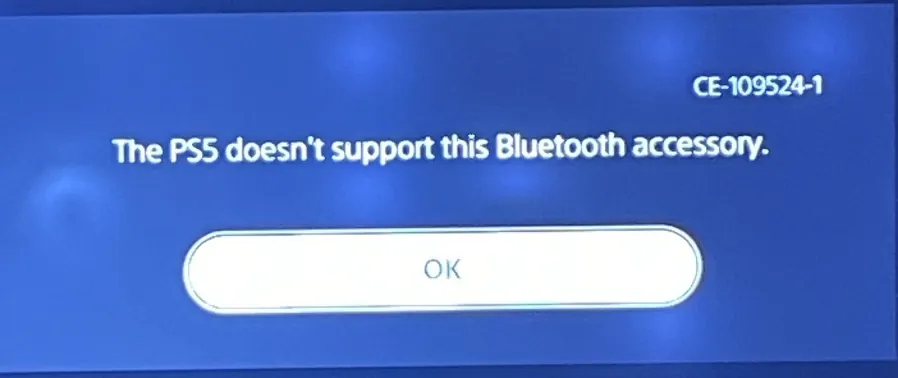
The message is the explanation: this PS5 does not support that Bluetooth accessory. Trying again did not change it, and nothing was wrong with the keyboard or the mouse, which both work over Bluetooth on a computer.
What worked was the small USB receiver that came in the keyboard box, a Logi Bolt receiver with a green symbol on it. Plugged straight into the PS5, it did nothing at first, because the keyboard was still on the channel it uses for Bluetooth. We plugged the receiver into a Mac, switched the keyboard to a free channel with its Easy-Switch key, and it connected through the receiver without any software. Then we moved the receiver to a USB port on the back of the PS5. The keyboard typed in the PS5 search straight away, with no pairing on the console.
The mouse is a different job. A Logitech mouse bought on its own is not paired with the keyboard’s receiver, and pairing it takes Logitech’s tool on a computer: Logi Options+, or the Logi Web Connect page in Chrome, as Logitech’s support page describes. We skipped it. On PS5, mouse and keyboard support is decided game by game, and Rockstar has not said whether GTA VI has it.
What’s confirmed and what isn’t
| Claim | Status | Source |
|---|---|---|
| The clear pieces in a slim PS5 box are horizontal stand feet that go into the grooves | Confirmed | PlayStation Support, getting started guide |
| Vertical placement needs the vertical stand, sold separately | Confirmed | PlayStation Support, getting started guide |
| Vertical Stand costs £24.99 in the UK | Confirmed | PlayStation UK product page, checked November 14, 2026 |
| Pre-load needs up to 212 GB and opened on PS5 on November 10, 2026 | Confirmed | Rockstar Newswire |
| GTA VI targets 30 fps on PS5 and PS5 Pro | Confirmed | Rockstar, November 10, 2026, via Push Square |
| Ordinary Bluetooth headphones are listed but do not connect for audio | Seen on our PS5 | Our console, November 14, 2026; background from What Hi-Fi? |
| A Logitech MX Keys S keyboard and MX Master 4 mouse over Bluetooth give error CE-109524-1 | Seen on our PS5 | Our console, November 16, 2026 |
| The MX Keys S works on PS5 through its Logi Bolt USB receiver | Seen on our PS5 | Our console, November 17, 2026 |
| Mouse and keyboard support in GTA VI on PS5 | Not announced | No statement from Rockstar |
| A 60 fps or 40 fps mode | Not announced | No statement from Rockstar |
| PS5 system software 26.07-14.23.00 is required to play GTA VI | Confirmed | PlayStation Support, November 18, 2026, via Push Square; Sony’s system software page |
| Game update 01.002.001 is about 602.5 MB on PS5 | Reported | Vice, from console download prompts, via Make Tech Easier, November 17, 2026 |
| Day-one patch notes | Not announced | No statement from Rockstar |
The game opens at midnight local time on November 19, 2026. The evening before, open your library and make sure the download reads as complete, not paused or queued, that the system software reads 26.07-14.23.00 or later, and that the controller is charged. Our GTA 6 release time guide has the exact hour for every US and European time zone.
FAQ
Questions people ask
Q1 What are the two clear plastic pieces in the PS5 box?
They are the horizontal stand feet. Sony includes them with slim PS5 consoles so the console can lie on its side. They push into holes in the groove between the two white cover plates. They are not used when the console stands upright, which needs Sony's vertical stand, sold separately.
Q2 Where do the PS5 horizontal stand feet go?
Into the dark groove between the two white cover plates, on the side that will face down. On our slim PS5 with a disc drive that was the drive side, one foot near the front and one near the back. Sony's steps are to place the console on a soft cloth and insert the feet into the hole in the grooves.
Q3 Can a slim PS5 stand upright without a stand?
Sony's setup guide says that to set the console in the vertical position you need the vertical stand, which is sold separately. The box only includes the feet for lying flat. Sony's UK store lists the Vertical Stand at £24.99 and says it fits PS5 Pro and the slim and original PS5 model groups.
Q4 How do I make GTA 6 download while the PS5 is in rest mode?
Go to Settings, Saved Data and Game/App Settings, Automatic Updates and turn on Auto-Download. Then go to Settings, System, Power Saving, Features Available in Rest Mode and turn on Stay Connected to the Internet. With both on, a pre-ordered or redeemed copy of GTA VI downloads while the console rests.
Q5 What PS5 settings should I check before playing GTA 6?
First install system software 26.07-14.23.00 under Settings, System, System Software, because Sony says GTA VI needs it before it will run. Then check Settings, Screen and Video, Video Output: leave Resolution on Automatic, set HDR to On When Supported and run Adjust HDR for your TV. VRR and ALLM can stay on Automatic. Check Settings, Storage for at least 212 GB free. GTA VI targets 30 fps on every console, and Rockstar has not announced a 60 fps mode.
Q6 How much free space does a PS5 need for GTA 6?
Rockstar says the pre-load needs up to 212 GB of available space, depending on your device. Rockstar has not announced a day-one patch, and update 01.002.001 was reported at about 602.5 MB on PS5, so keeping about 250 GB free leaves room. Settings, Storage on the PS5 shows how much room the console storage and any M.2 SSD have left.
Sources
- 1 PlayStation Support: Getting started with your new PS5 console
- 2 PlayStation Support: How to attach a vertical stand to your PS5 console
- 3 PlayStation UK: Vertical Stand for PS5 consoles
- 4 PlayStation Support: How to set up auto-downloads and updates on PlayStation consoles
- 5 PlayStation Support: How to change PS5 console resolution
- 6 PlayStation Support: How to capture PS5 console gameplay and screenshots
- 7 Rockstar Newswire: Grand Theft Auto VI Pre-Load Begins on November 10
- 8 Push Square: GTA 6 PS5 Pro features revealed, 30fps target on both consoles
- 9 PlayStation Support: System software update features for PS5 consoles (version 26.07-14.23.00)
- 10 Push Square: GTA 6 Requires New PS5 Firmware Update to Play (November 18, 2026)
Keep going
Next on the map
GTA 6 Collectibles and 100% Checklist: Every Count in the Progress Menu
GTA 6 tracks about 3,000 items in the Progress tab of the pause menu. PowerPyx counts 557 vehicles (277 base models and…
Nov 19, 2026 · 5 min read
Does GTA 6 Have Cheats? What Rockstar Has Said So Far
Nobody knows yet. Rockstar has not confirmed or ruled out cheat codes in Grand Theft Auto VI, and no preview of the…
Nov 13, 2026 · 6 min read
GTA 6 Wanted Level: Six Stars and How the Police Work
GTA 6's wanted level goes up to six stars, one more than GTA 5's five, based on Rockstar's Extended Look gameplay video…
Nov 16, 2026 · 7 min read